
File IO Agent System
User Manual
Introduction
About this manual
This document describes in detail how to use each of the functional modules of the File IO Agent System.
About the system
The File IO Agent System was built to meet the demands of handling files efficiently in everyday work, and to lower the barrier to the more specialised kinds of file processing. It is a multi-turn conversational system built on artificial intelligence: it uses a large language model's understanding of natural language, together with an agent's ability to reason, to help you work with files of all kinds.
The system covers the following modules: conversion between PDF and images, video downloading, text-to-speech, resource search, QR code generation, multimedia file editing, and computational musicology. Each module reads the key parameters out of your prompt and produces a file that matches what you asked for.
Using the File IO Agent System
Getting in
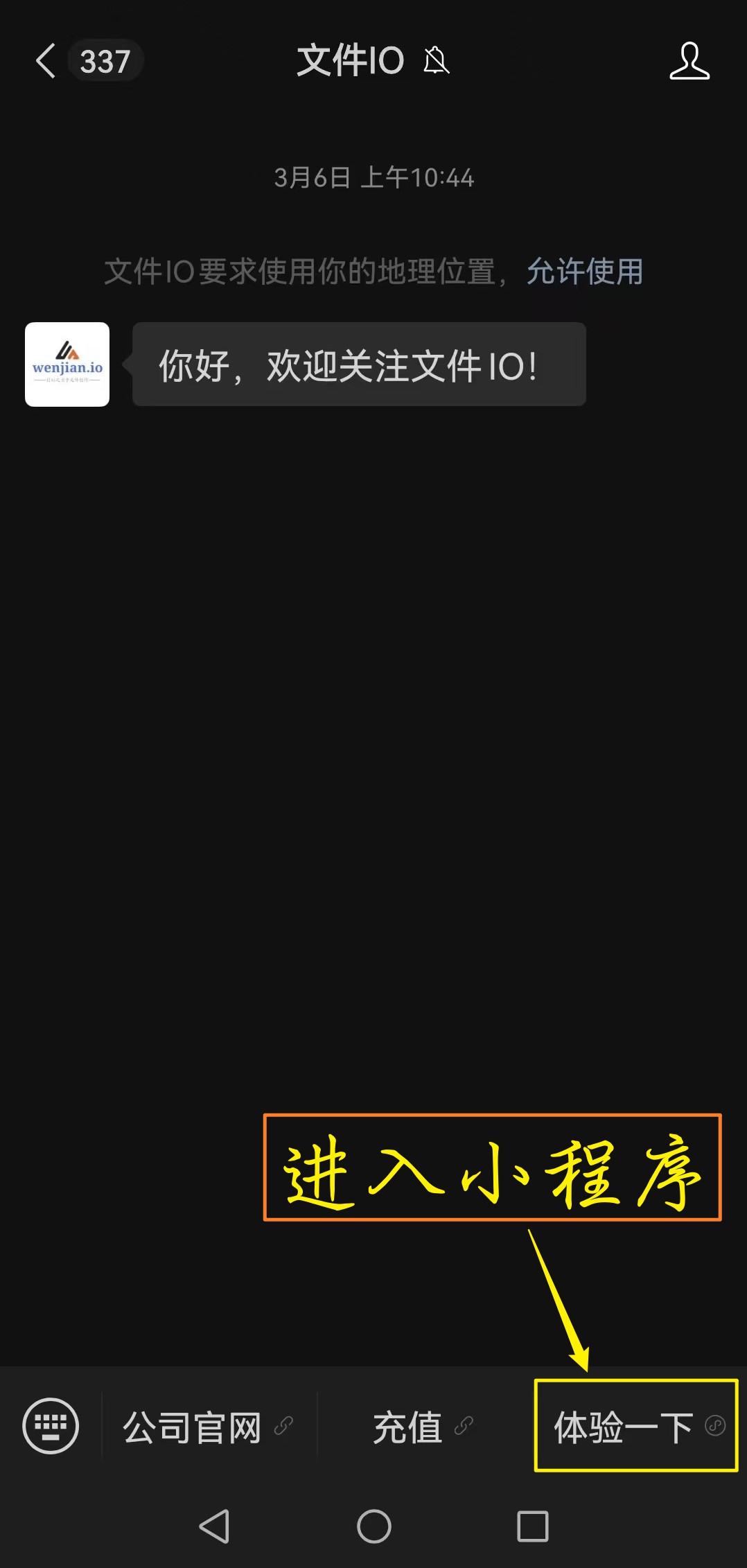
Scan the Mini Program code below with the WeChat client to open the app.

Screen layout
The screen is divided into two areas. The upper area lists your files — everything the system generates for you appears here, and tapping a file previews it. The lower area is where you type: describe what you need in plain language and tap “Send”, and our servers will act on it. Here is what it looks like:
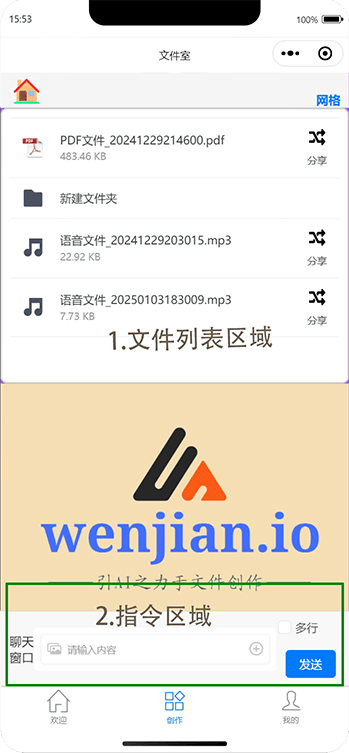
Besides the text box, there is a picture icon at one end of the chat bar and a “+” at the other. These upload images and documents from your device into the file list so they can be worked on. For example, if you have a PDF to process, tap “+”, choose the file and upload it; once it has gone through, describe what you want in the text box — something like “pull the images out of pages 1, 3 and 8 of this PDF”. A moment later, image files sharing the PDF's name prefix appear in the file list above, and the job is done. (Note: you must be logged in before you can actually send an instruction. Until you are, the Send button stays greyed out.)
The chat area
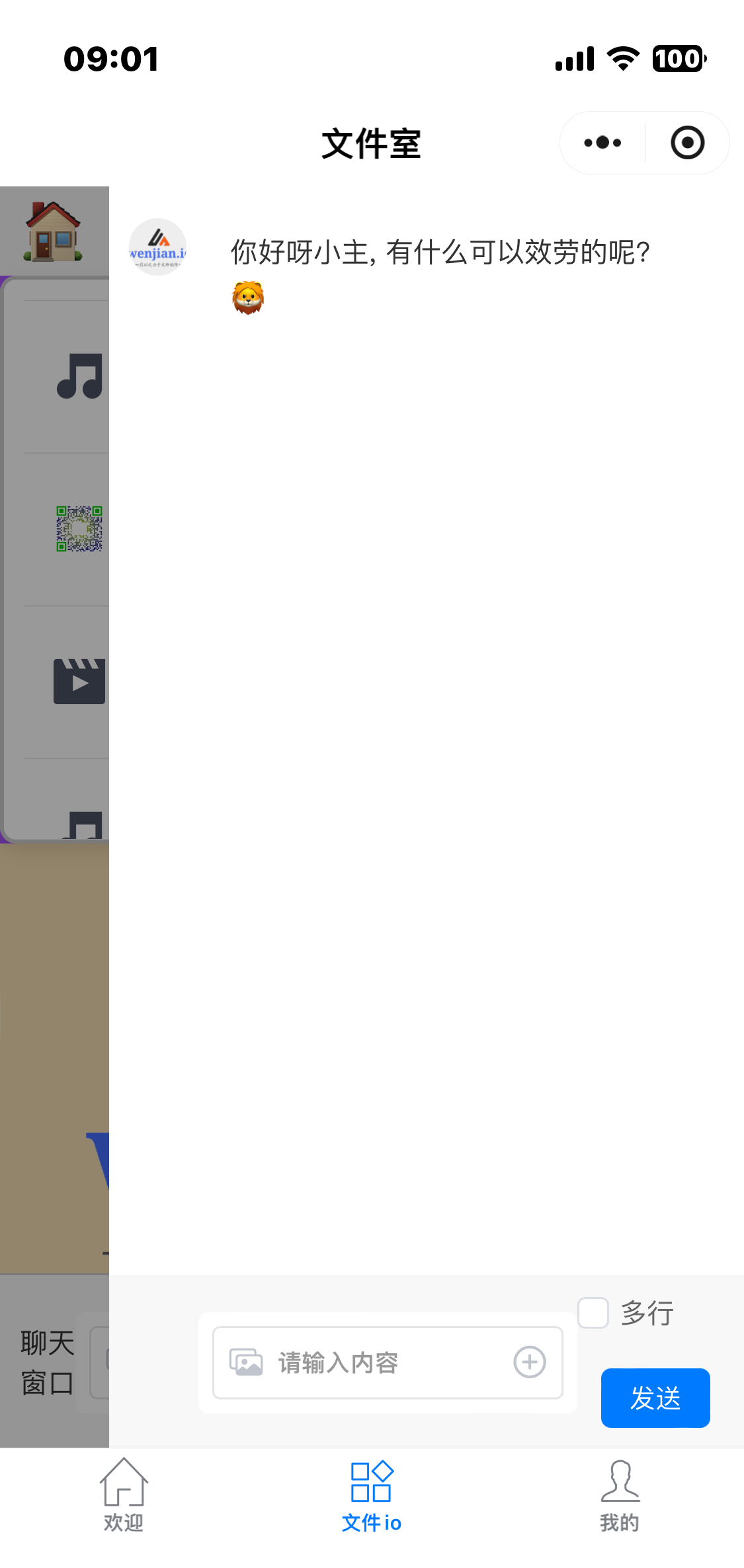
Tapping “Chat” at the far left of the lower area opens the chat page. There you can watch the progress of the current job and the system's responses in real time, and you are notified when the job finishes:
Your account details
On the “Me” page, once you log in, your account details are shown. There are four of them: online status, Token balance, storage expiry date, and username. As below:
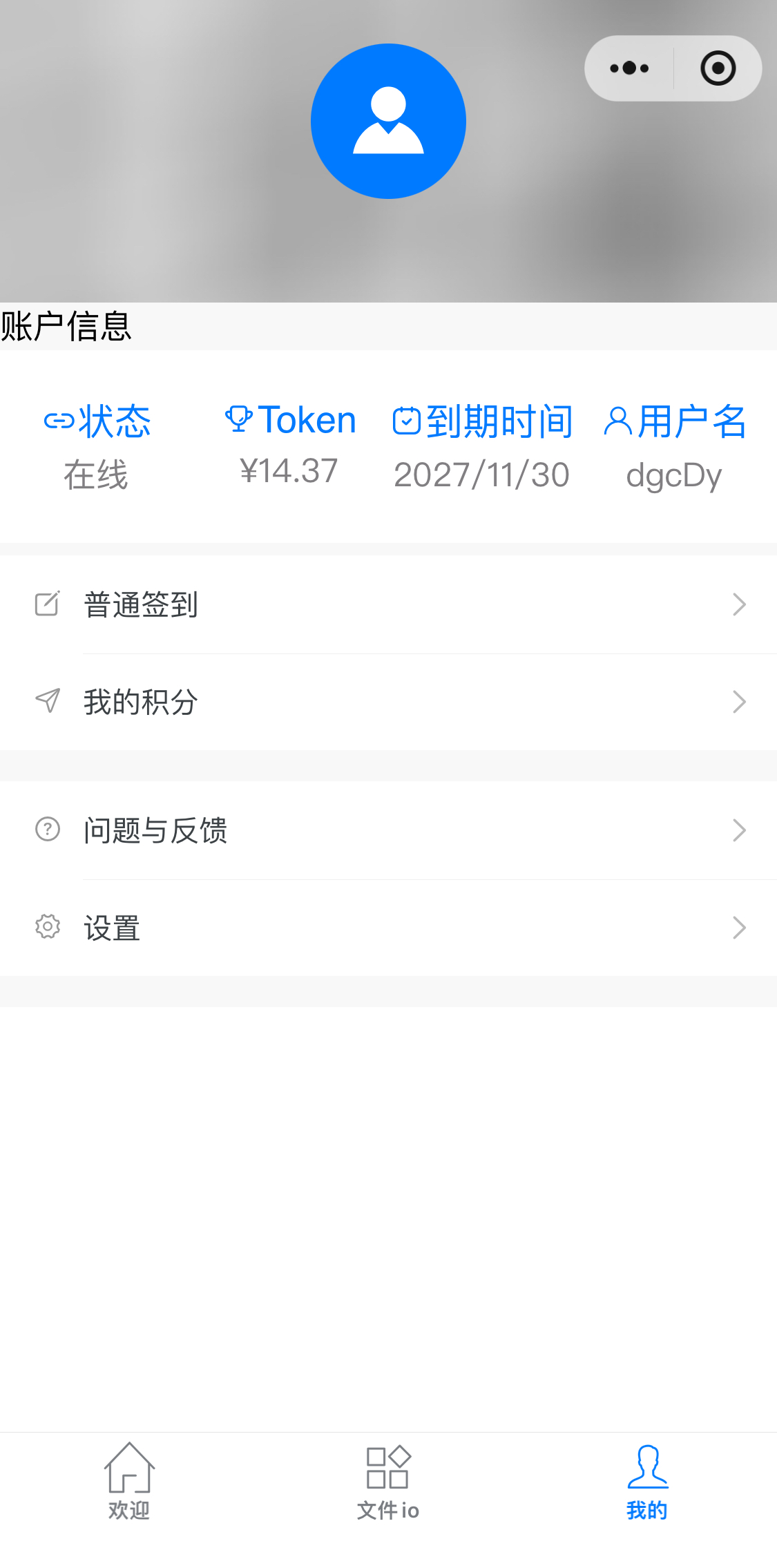
This is the state of the connection between you and our backend servers, and it is either Online or Offline. The “Send” button on the chat page is only active while you are Online. Offline means the connection to our servers has dropped and instructions cannot be sent for the moment — wait until it turns Online and try again. You can refresh the status by tapping the status bar, which is worth trying if you have been offline for a while; pulling the page down also refreshes it.
Tokens are what each instruction you send to our servers costs. Every user gets a trial allowance; once it runs out you will need to top up to keep using the service.
The date until which you can upload, download and otherwise interact with the files in your file list. It is not tied to your Token balance — your Tokens are kept even after this date passes.
The identifier tied to your login. When topping up through the Official Account you will be asked for exactly this value (in the screenshot, dgcDy is the username).
When something goes wrong
Stuck offline
If the Mini Program stays offline for a long time, try these in order: 1. Pull to refresh. Go to the “Me” page and pull down to refresh the status. Tapping the “Status” field at the far left of the account bar does the same thing. 2. Restart the Mini Program. Close it, wait five seconds, and open it again. 3. Log in again. On the “Me” page, go to Settings, log out, and log back in. 4. Remove the Mini Program, then open it again and log in. 5. If none of that helps, contact our technical support (email: support@wenjian.io).
The screen does not respond
If tapping does nothing, try reopening the Mini Program page, then logging in again, and finally removing the Mini Program and opening it afresh.
Things you can ask for
Documents
- Convert pages 1, 3 and 8 of this PDF into images.
- Turn these pictures into a sticker.
- Convert the document called "contract.pdf" into images.
- Take the images out of that PDF whose name starts with 2025.
- Merge all the JPGs into one PDF, keep the aspect ratios, use B5 pages rather than A4, make the background blue, and put a password on it — set the password to 123456.
Video downloads
- Download this video: https://www.bilibili.com/video/BV1yx4y1Y7HP/?share_source=copy_web
Text to speech
- Read this line in British English: To be, or not to be, that is a question.
- Read this poem in Japanese, and make it sound poetic: “The crane cries in the deep marsh, and its voice is heard in the wilds. The fish lies hidden in the depths, or rests upon the islet. Pleasant is that garden, where the sandalwood grows, with fallen leaves beneath it. Stones from other hills may be used to polish jade.”
- Translate “I love you” into French, then read it aloud.
Searching for things
- Show me “A Thousand Li of Rivers and Mountains”.
- Want to see other famous paintings? Just ask.
QR codes
- Make a QR code for my home Wi-Fi, the network is TP-LINK_8888 and the password is 123456.
- Read the QR code in the file named "IMG_1234.JPG". (Upload the image first.)
- Scan the QR code in the file called fileio.jpg. (Upload the image first.)
- Make a QR code that sends an email to support@wenjian.io with the subject “bug report”.
- Make a vCard QR code: name John Smith, male, phone 010-12345678, company Beijing Houzhen Visual Design Co., Ltd., website john.smith, email johnsmith@wenjian.io.
- Turn the phone number 134xxxx8888 into a QR code.
- Make a QR code that sends a text to 134xxxx8888 saying “Hello John, wishing you a happy Dragon Boat Festival.”
- Turn the address wenjian.io into a QR code.
- Make a location QR code, latitude 36.99443991535538, longitude 113.92837854295247.
- Turn the line “lobster in summer, crab in winter” into a QR code.
Multimedia
- Turn 123.mp4 into a sticker.
- Pull the audio track out of 123.mp4.
- Extract the audio from 123.mp4, then cut the section from 2:30 to 4:10 and convert it to opus.
- Take ten seconds of 123.mp4 starting at 2:15, crop to the middle 35% of the frame, and make a sticker out of it.
- Crop 123.mp4 to the centre of the frame, keep the width as it is and set the height to 36%, then make a sticker.
- Take ten seconds of 123.mp4 starting at 2:15, crop to the middle 35% of the frame, transcode it to a more widely supported format, then make a sticker.
- Extract the speech from 123.mp4 as ogg, keeping only the first twenty seconds. Then cut the video from 2:15 to 4:30, transcode it to something smaller, and make a sticker.
- Pull the audio track out of demo.mp4 and convert it to aac.
Note: when turning video into a sticker, keep the clip under about fifteen seconds.
Musicology
- Split 123.flac into vocals and accompaniment.
- Take the accompaniment out of 123.flac.
- Remove the drums from 123.flac.
- Split 123.flac into drums, bass and everything else.
- Extract the piano and drum parts from 123.flac.
- Take the audio track out of 123.mp4 and split it into guitar and drums.
Topping up
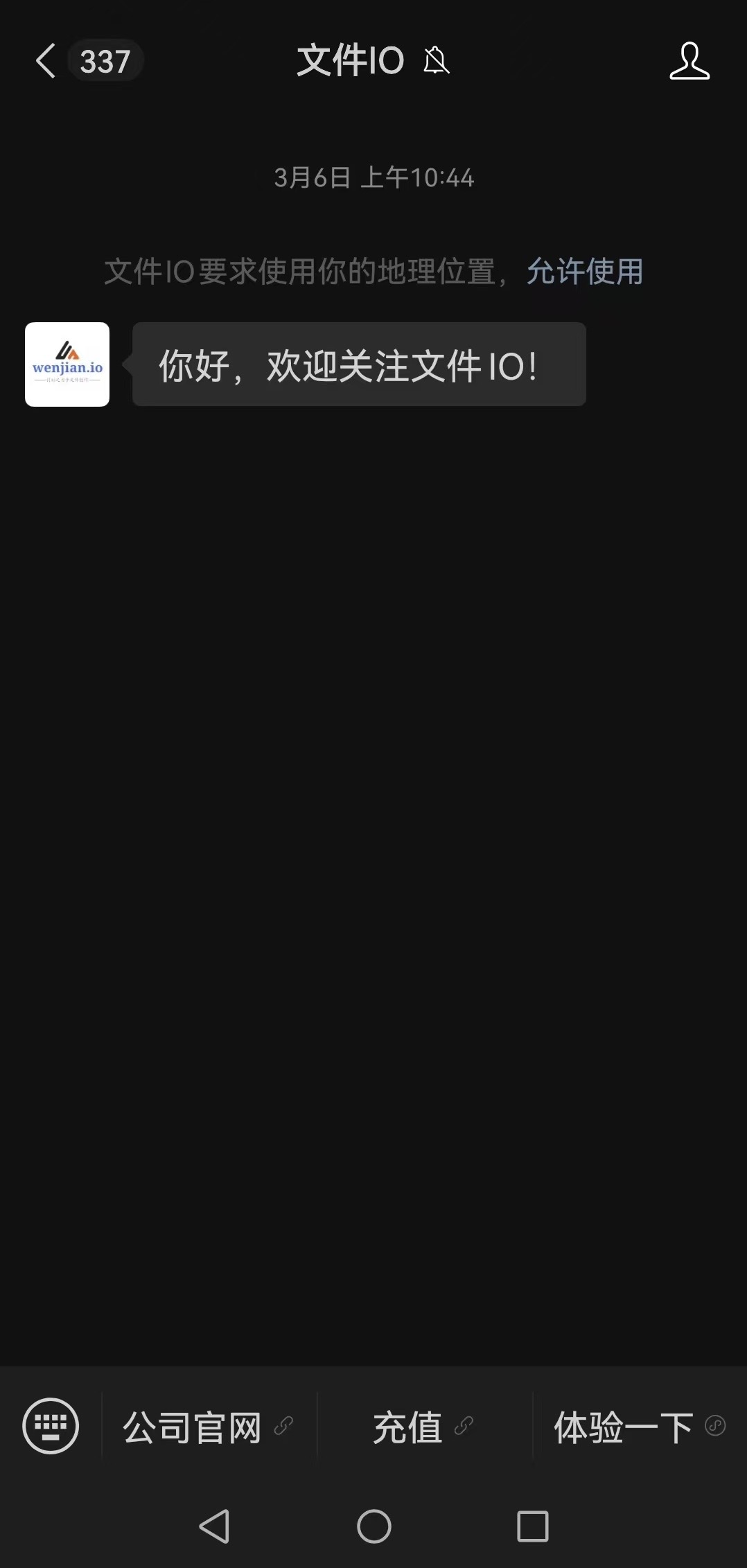
There are two ways to top up — through the Official Account, or from the chat window.- Through the Official Account
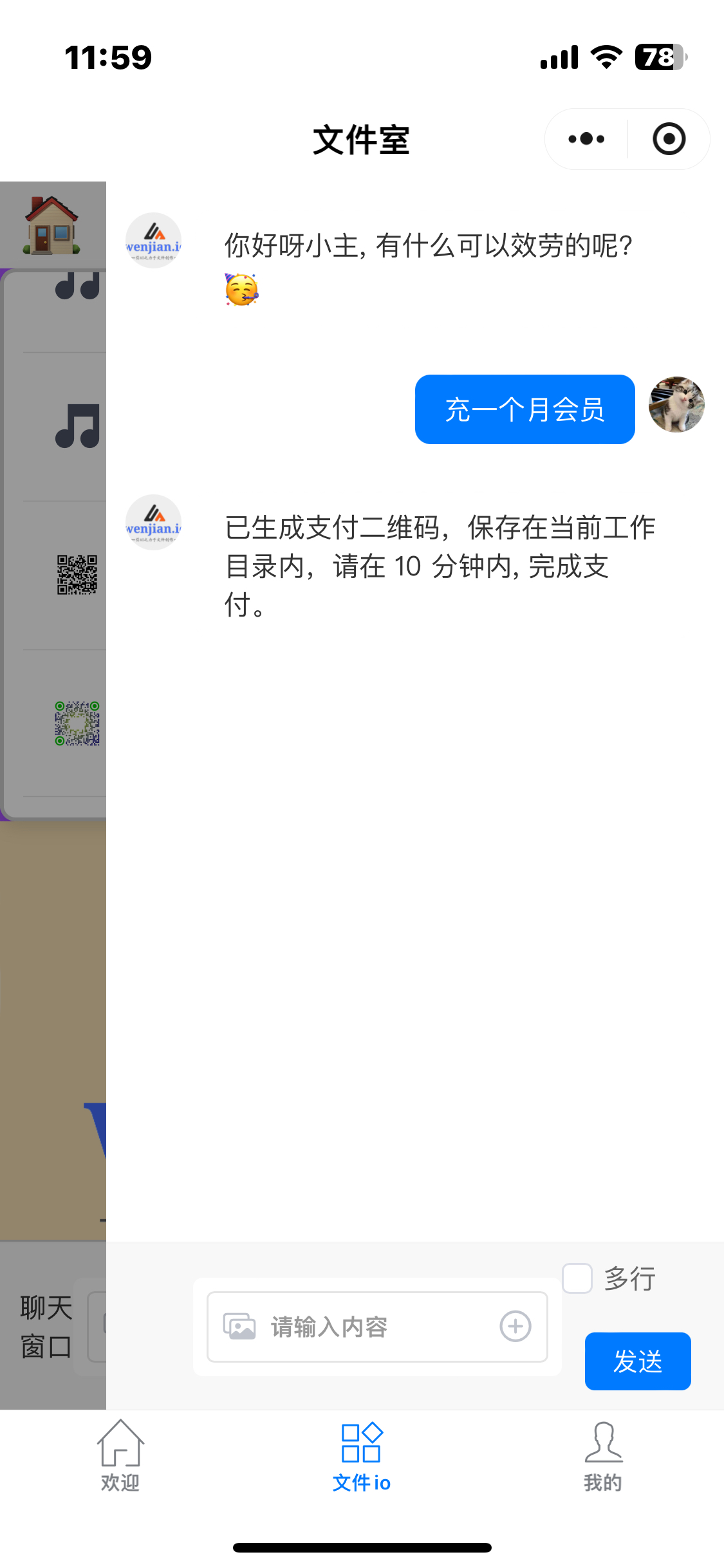
- From the chat window
- Top up 10 yuan.
- Buy a month's membership.
- Buy a quarter.
- Buy a year's membership.
- Give me a 7-day trial pack.
Scan the QR code below to open the Official Account chat, then tap “Top up”. Before you do, you will need your account username, which you can find on the “Me” page of the Mini Program (see “Your account details” above).

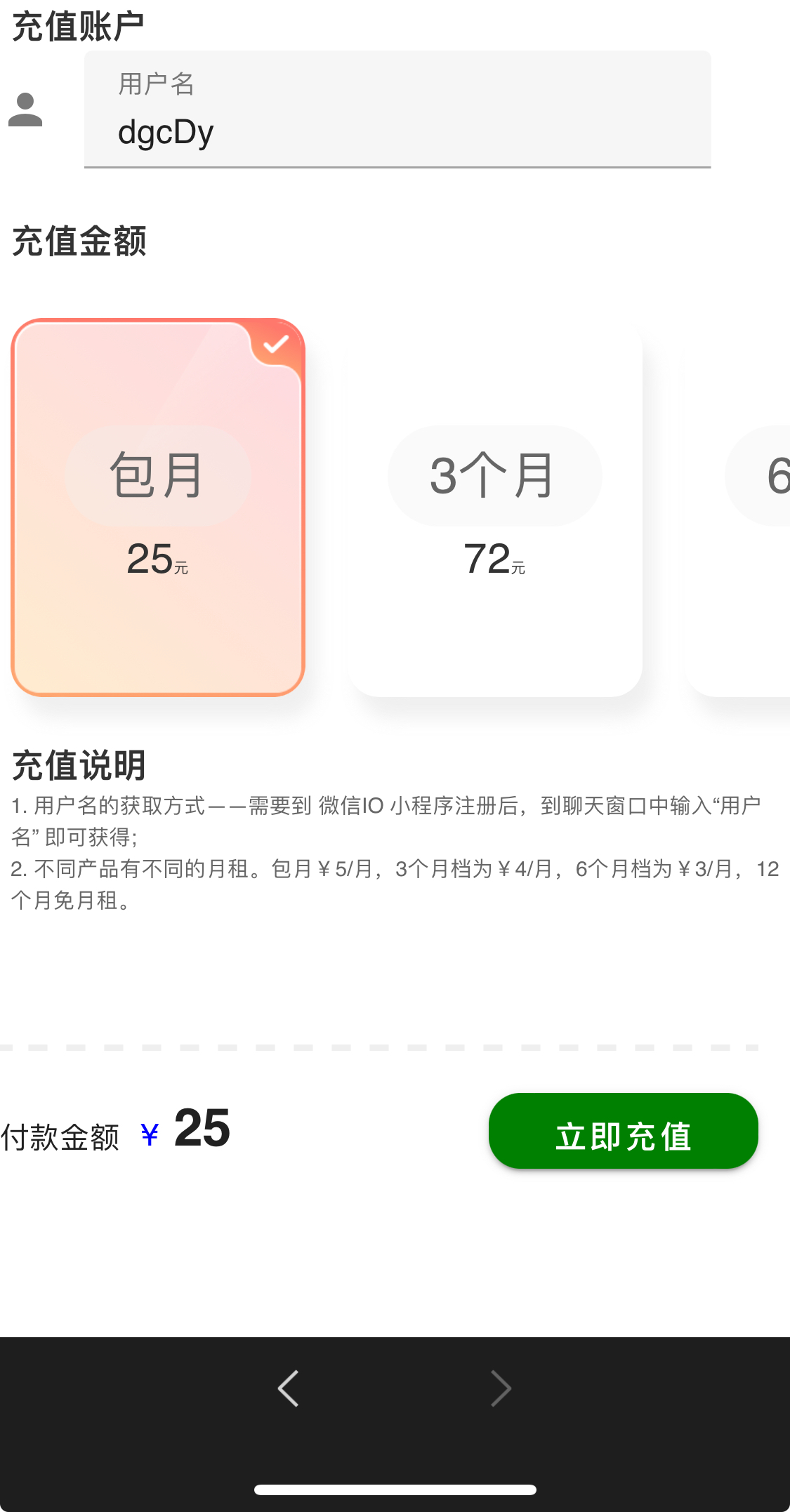
dgcDy, for instance — and you can pay.
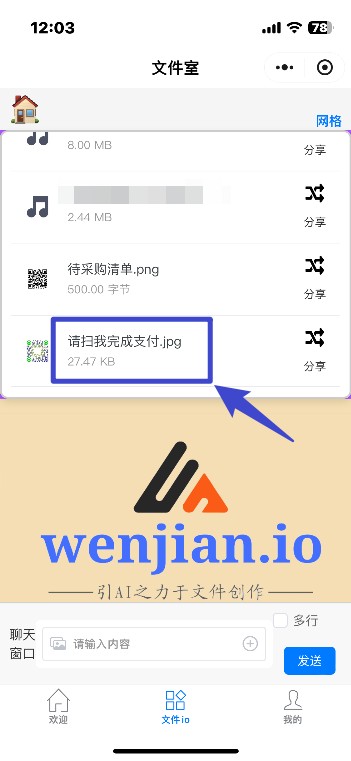
Type a top-up request in plain language into the chat window and the system generates a payment QR code for you in the file list, as below:
Built-in commands
A few built-in commands carry out specific tasks without spending any Tokens.- username
- usage
- manual
- clear
Type “username” in the chat window to see your current username straight away. Mostly useful when topping up through the Official Account.
Type “usage” in the chat window and a handful of random examples will be shown.
Type “user manual” or “manual” in the chat window and this document will be delivered to your working directory.
Type “clear” in the chat window to delete everything in your current workspace, files and subdirectories alike.
A note on accuracy
In computer science, an algorithm that is right 100% of the time is a hard thing to build. However ingeniously engineers around the world optimise their work, flaws still slip through — in programming these are called bugs. Large language models are no exception. At bottom, today's models predict the next character by probability, which sets their character from the outset and makes them fundamentally different from human reasoning. Model “hallucination” is the classic example: the output reads perfectly seriously while the content is nonsense. So there is always some chance that an instruction you send fails, or is misunderstood and carried out wrongly. Rephrasing usually fixes it — making the goal of the task stand out more clearly and stating it more precisely. Giving an example to compare against is another effective way of communicating with a language model.
Technical support
You can reach us for support either through the support group or by email.- Support group
Send your questions and feedback to support@wenjian.io, and please include your username.
Scan the support group QR code below. We welcome questions and suggestions of every kind.
Legal
The File IO Agent System reserves the right of interpretation, within the limits of the law, in respect of online status, server maintenance, Token deductions and related matters.